Text size
Line height
Text spacing
If you are assigned the Front-end Editing Teacher role in a PPN Learn course, you can help manage the learning experience for your participants. Depending on your course and assigned permissions, this may include updating course content, adding activities and resources, communicating with learners, and reviewing participation and completion.
This guide introduces common course-management tasks and helps you choose the appropriate PPN Learn tools for what you want learners to do.
Before editing an established or published course, consider whether the change could affect:
Important: Before making significant changes to an established learning product, contact your PPN Education team point person to discuss the potential effect on learners, tracking, reporting, and approved content.
To make changes within your course:
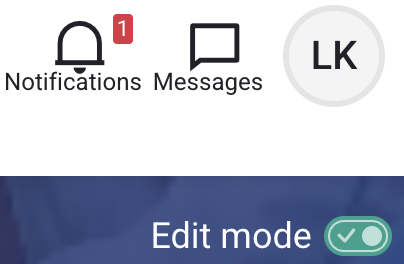
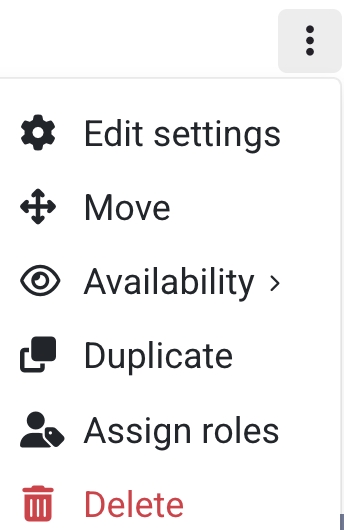
The options available to you depend on your assigned role and the configuration of the course.
Tip: If an expected editing option is unavailable, the restriction may be intentional. Contact your PPN Education team point person instead of changing other settings to work around it.
Select an activity or resource based on what learners need to do. The table below provides guidance for several commonly used PPN Learn tools.
| I want learners to... | Consider using... |
|---|---|
| Read instructions, introductory information, or brief course content | Text and media area |
| Open or download a document, template, handout, or presentation | File |
| Visit an external website, video, tool, or partner resource | URL |
| Submit written work or upload a file | Assignment |
| Participate in a discussion, reflection, or question-and-answer activity | Forum |
| Answer questions that can be evaluated or scored | Quiz |
| Complete an ungraded survey or provide feedback | Questionnaire |
| Complete multimedia or interactive learning | Interactive Content |
| Complete a packaged eLearning module with progress tracking | SCORM Package |
A Text and media area is useful for information learners should see directly on the course page, including:
Keep course-page content concise and easy to scan. Longer educational content may be better suited to a separate resource or activity.
A File is appropriate when learners need to open or download a document, worksheet, template, reference document, or presentation.
Give files descriptive, learner-friendly names instead of displaying only the uploaded filename.
Preferred: Community Exercise Planning Worksheet
Less helpful: final_document_v3.pdf
A URL is appropriate when an external website, video, online tool, or partner resource is an intentional part of the learning experience.
Configure external resources to open in a new window or tab when appropriate so learners can easily return to PPN Learn.
An Assignment is useful when learners need to submit something for review. Depending on its configuration, learners may enter text, upload a file, receive feedback, or receive a grade.
A Questionnaire can collect ungraded responses such as course feedback, needs assessments, learner reflections, program evaluations, or experience surveys.
A Forum is useful for asynchronous discussion, reflection, collaboration, introductions, case discussions, or learner questions.
Before opening a forum, add an introductory post explaining its purpose, how learners should participate, and what they should contribute.
Interactive Content can provide multimedia or interactive learning experiences. Before selecting this option, consider accessibility requirements and whether learner participation or completion needs to be tracked.
A Quiz is appropriate when learners need to answer questions that can be evaluated or scored. Quizzes may support knowledge checks, formal assessments, passing-score requirements, feedback, and activity or course completion.
Important: Changes to an existing quiz may affect learner attempts, grades, or completion. Consult the PPN Education team before making significant changes to an assessment already in use.
A SCORM Package is commonly used for interactive eLearning developed in an external authoring tool. Depending on the package and configuration, SCORM may report:
Important: Do not replace or substantially modify an active SCORM activity without first consulting the PPN Education team. Changes may affect existing learner progress, attempts, and completion records.
With editing enabled, you may see several options for managing existing course content.
Change where an activity, resource, or section appears within the course.
Temporarily prevent learners from accessing an item while keeping it available to authorized course staff.
Create a copy of an existing activity or resource as a starting point for another item.
Remove an activity or resource from the course.
Use caution when deleting content. An activity may already contain learner participation, submissions, attempts, completion information, or other records.
If learners have already used an activity, do not delete it solely to replace or reorganize content. Contact your PPN Education team point person if you are unsure how the change could affect existing learner records.
After editing your course, review the experience from the learner’s perspective.
Recommended: For substantial changes, ask your PPN Education team point person to review or test the course before learners begin.
Contact your PPN Education team point person if you:
The PPN Education team can help determine the best approach while protecting the learner experience and existing course records. If you do not know your PPN Education team point person, contact PPN Learn Support .

