Frequently Asked Questions (FAQs)
| Site: | Pediatric Pandemic Network Learn |
| Course: | Pediatric Pandemic Network Learn |
| Book: | Frequently Asked Questions (FAQs) |
| Printed by: | Guest user |
| Date: | Friday, October 16, 2026, 2:08 PM |
Table of contents
- Frequently Asked Questions (FAQs)
- Use PPN Learn Content in Your Institution
- PPN Learn Code of Conduct
- PPN Learn Community Guidelines
- Log In or Sign Up for a PPN Account
- Enroll in Content
- Access Content You Enrolled In
- Train Your Team with PPN Learn
- Enroll Users to a Course
- Build and Manage Your PPN Learn Course
- Review Student Data for Your Course
Frequently Asked Questions
Welcome to the PPN Learn Frequently Asked Questions (FAQs) page. As PPN Learn expands, we will add support documentation addressing commonly asked questions and new platform features.
Cannot find the answer you need? Contact us for assistance.
General
For Everyone
For Course Teachers and Managers
Use PPN Learn Content at Your Institution
PPN Learn hosts educational content developed by the Pediatric Prevention Network and partner organizations. We strive to provide high-quality, open-access resources that can be shared and used to strengthen pediatric preparedness and education.
There are two primary ways your institution may use content available through PPN Learn:
1. Share, Reuse, or Adapt Content
Much of the content available through PPN Learn is released under a Creative Commons license. Depending on the license assigned to a specific resource, you may be permitted to share, reuse, or adapt the content for noncommercial purposes.
- Review the license associated with each resource before using it.
- Follow the attribution requirements provided with the content.
- Confirm whether the license permits adaptation, redistribution, or both.
- Retain required acknowledgments, citations, and notices when sharing or adapting the content.
2. Download Course Packages for Your Learning Management System
PPN Learn works with partner organizations to make selected course packages available through the Free Courseware Library .
Your institution may download eligible packages and install them in its own Learning Management System (LMS). Work with your LMS administrator, instructional design team, or medical education department to determine compatibility and complete the installation.
Once installed, the content can be made available to authorized learners within your institution according to local access, enrollment, and reporting procedures.
Licensing and reuse permissions may vary by resource. Always review the acknowledgments, attribution instructions, and Creative Commons license associated with the specific content you plan to use.
Have questions about using PPN Learn content at your institution? Contact us for assistance.
PPN Learn Code of Conduct
PPN Learn brings together learners and professionals from diverse communities. This Code of Conduct helps ensure that PPN Learn remains a welcoming, respectful, and supportive environment for all users, regardless of race, color, religion, national origin, sex, gender identity, sexual orientation, age, disability, political affiliation, veteran status, or any other characteristic protected by applicable law.
This Code of Conduct was developed in collaboration with the PPN Informatics team and will be reviewed annually with input from users, instructors, and administrators. It provides expectations for appropriate participation throughout the platform. The PPN Learn team reserves the right to determine whether conduct violates these expectations.
Everyone who participates in PPN Learn shares responsibility for creating a safe, professional, and constructive learning environment.
General Guidelines
This Code applies to all interactions on PPN Learn, including forum posts, comments, private messages, and other collaborative activities. All users are expected to follow these guidelines. Failure to do so may result in the removal of content, restricted participation, or loss of access to the platform.
PPN Learn and its partners may provide educational information through the platform but cannot respond to every post or comment. Contributions from other learners may be helpful, but they do not represent official communication from PPN Learn or its partner organizations.
User-Generated Content
Users retain ownership of the content they post. By posting content on PPN Learn, users grant PPN permission to share that content under a Creative Commons Attribution-NonCommercial-NoDerivatives 4.0 International license (CC BY-NC-ND 4.0) .
This license permits noncommercial sharing with appropriate attribution, provided the material is not modified. PPN may also use submitted content in educational or promotional materials.
Permission will be requested before a user’s image or full name is used. If an account is deleted, associated posts and messages may be retained in anonymized form.
User Responsibilities
All users are expected to:
- Help maintain a safe, respectful, inclusive, and supportive learning environment.
- Follow all applicable PPN Learn policies and guidelines.
- Communicate respectfully with learners, instructors, administrators, and other members of the PPN Learn community.
- Avoid bullying, harassment, discrimination, and disruptive behavior.
- Ask questions when clarification is needed and seek assistance when problems arise.
- Take responsibility for their actions, communications, and contributions.
- Protect confidential, sensitive, and personally identifiable information.
Inappropriate Behavior
The following behaviors are not permitted on PPN Learn:
- Dangerous or hateful content: Content that promotes, encourages, or glorifies violence, harm, hatred, or fear directed toward an individual or group.
- Harassment or intimidation: Offensive, threatening, or demeaning comments or actions, including conduct based on a person’s identity or protected characteristics.
- Violence or threats: Threats of violence, incitement to violence, encouragement of self-harm, or disclosure of another person’s private identifying information without authorization.
- Discriminatory or exclusionary conduct: Language or behavior that demeans, excludes, or targets individuals or groups.
- Unwelcome sexual conduct: Sexual comments, jokes, images, messages, attention, or advances that create an intimidating, hostile, or uncomfortable environment.
- Encouraging misconduct: Assisting, supporting, or encouraging another person to violate this Code of Conduct.
- Disruption: Repeatedly interrupting or interfering with discussions, presentations, courses, or other learning activities.
- Retaliation: Harassing, threatening, or penalizing someone for reporting a concern or participating in a review of reported conduct.
- Privacy violations: Sharing confidential, sensitive, or personally identifiable information without appropriate authorization.
Enforcement and Consequences
Reported concerns will be reviewed using the PPN Learn Community Guidelines and this Code of Conduct. The nature, context, severity, and frequency of the reported behavior will be considered when determining an appropriate response.
Depending on the circumstances, actions may include:
- No action when the review does not identify a violation
- Removal or modification of content
- A written or verbal warning
- Temporary restriction or suspension of platform access
- Removal from specific forums, roles, courses, or activities
- Permanent removal from PPN Learn or related PPN Learn community spaces
Repeated misconduct, harassment, threats, or abusive behavior may result in account suspension or permanent removal from the platform.
PPN Learn is committed to maintaining a professional environment in which all participants feel safe to learn, collaborate, ask questions, and contribute.
Version: 5.19.26
PPN Learn Community Guidelines
Welcome to the PPN Learn community. These guidelines are designed to support a respectful, professional, and safe environment for learning and collaboration. By participating in discussions, forums, messages, and other activities on PPN Learn, you agree to follow these Community Guidelines and the PPN Learn Code of Conduct .
Communicate with the same care, respect, and professionalism online that you would use when working with colleagues in person.
Respect and Professionalism
Written communication can sometimes lead to misunderstandings. Communicate clearly, respectfully, and thoughtfully. Emojis may help convey tone, but they do not excuse rude, harmful, or offensive behavior.
Treat all PPN Learn users, contributors, instructors, and staff with respect. PPN Learn content may address complex or sensitive topics related to pediatric emergencies and disaster preparedness. Open discussion and differing perspectives are welcome when expressed professionally and with consideration for others.
Feedback and Constructive Criticism
Constructive feedback is encouraged and can strengthen content, ideas, processes, and the overall learning experience. When providing feedback:
- Focus on the work, idea, or process—not the person.
- Use specific, respectful, and actionable language.
- Do not belittle or shame others for mistakes, questions, or gaps in understanding.
- Consider providing potentially sensitive or individual feedback privately.
- Seek clarification before assuming another person’s intent.
- If an interaction becomes unproductive, discontinue it instead of escalating the conflict.
Privacy and Personal Information
Protect your privacy and the privacy of others. Do not post confidential, sensitive, or personally identifiable information without appropriate authorization.
Information You Should Not Share Publicly
- Personal email addresses or telephone numbers
- Home or work addresses
- Account, identification, medical record, or case numbers
- Passwords or account-access information
- Protected health information or details that could identify a patient, child, family, colleague, or community member
- Photographs, screenshots, documents, or other information shared without appropriate permission
- Any information that could compromise someone’s privacy, safety, or security
Review the PPN Privacy Statement and Terms of Use for additional information.
Resolving Issues and Reporting Concerns
Disagreements may occur in an online community. Before assuming harmful intent, seek clarification and respond calmly and respectfully. Do not respond to conflict with hostility, harassment, threats, or other inappropriate behavior.
If an issue cannot be resolved safely and respectfully, stop the interaction and report the content or conduct to the PPN Learn team through the Contact Us page.
Information to Include in a Report
When possible, provide the following information to help the PPN Learn team review the concern:
- A link to the relevant post, message, course, or activity
- Screenshots or copied text documenting the concern
- The visible username or display name involved
- A brief description of what occurred
- Any other context that may assist with the review
The PPN Learn team will handle reports as discreetly as reasonably possible and will take appropriate steps to protect the privacy of the individuals involved. Information may be shared with those who need it to review and respond to the concern.
Review and Enforcement
Reported concerns will be reviewed using these Community Guidelines and the PPN Learn Code of Conduct . The nature, context, severity, and frequency of the reported behavior will be considered when determining an appropriate response.
Every member of the PPN Learn community contributes to creating a respectful environment where people can learn, collaborate, and exchange ideas safely.
Version: 5.24.26
Log In or Sign Up for a PPN Account
Your PPN account provides access to PPN platforms, including PPN Learn, Resource Central, Continuing Education, and Analytics. To begin, select the login button on the platform you want to use. You will be directed to the PPN login page.
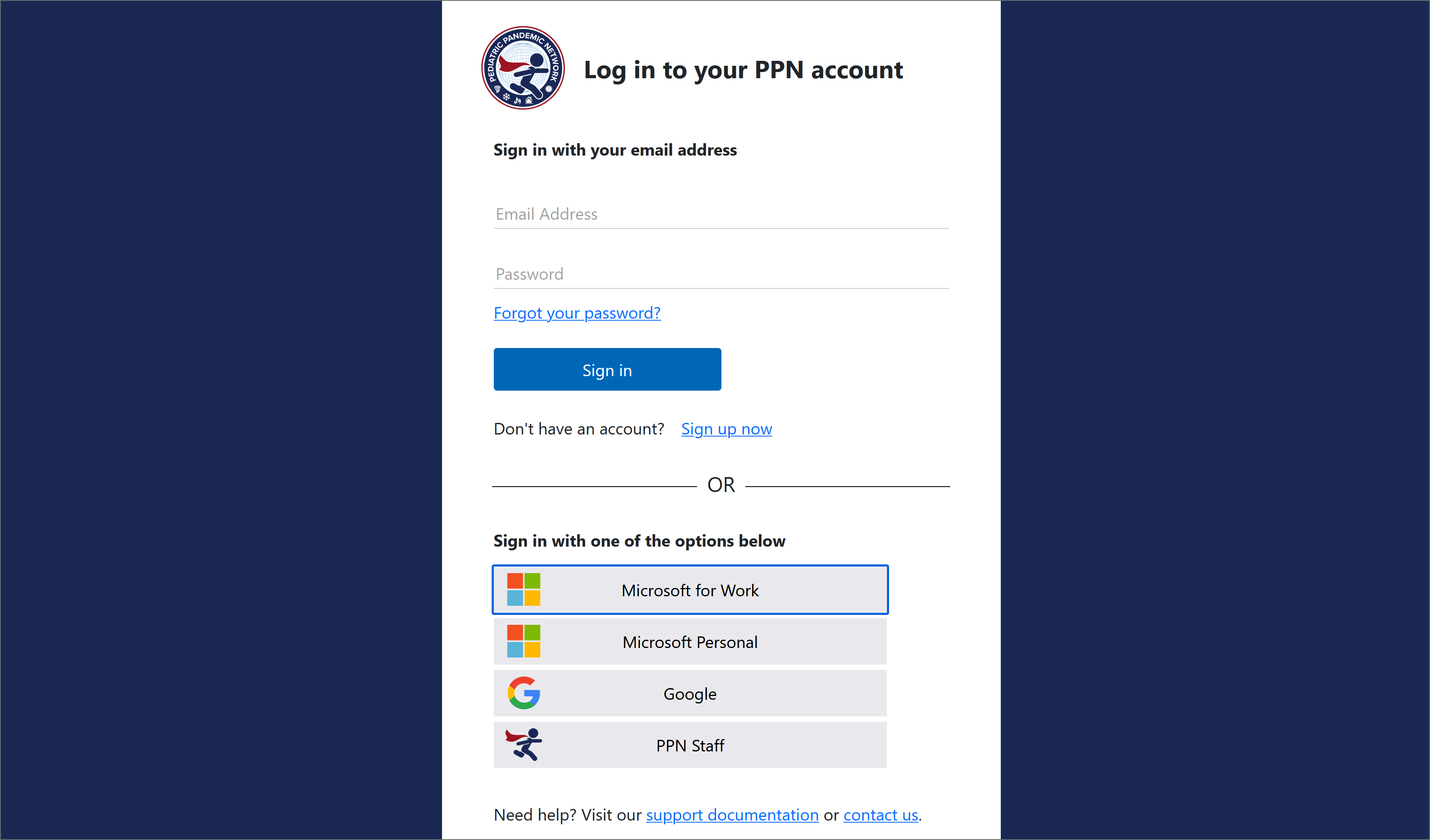
Choose the login method associated with the account you originally used. Using a different method may create a separate PPN account.
You can create or access a PPN account using one of the following five methods:
1. Email and Password
You may use an email address and password to create a PPN account or log in to an existing account.
To create an account, select Sign up now and complete the registration form. You will be asked to verify your email address before the account-creation process can be completed.
2. Microsoft for Work
Select Microsoft for Work if you want to create or access your PPN account using a Microsoft work or school account.
Your organization’s information technology policies must allow the account to be used with external single sign-on applications.
If this option does not work: Use the Email and Password method above and register with your Microsoft email address.
3. Microsoft Personal
Select Microsoft Personal if you have a personal Microsoft account, such as an address ending in @live.com, @outlook.com, @msn.com, or @hotmail.com. Do not use this option for a work or school Microsoft account.
4. Google
Select Google if you want to create or access your PPN account using a personal Gmail account or an eligible organizational Google Workspace account.
5. PPN Staff
Select PPN Staff if you are a PPN staff member with an email address ending in @pedspandemicnetwork.org.
If you are unsure whether you have a PPN staff account, submit a support request so the PPN Learn team can help verify your account. You may also use one of the other login methods described on this page.
Need help? If you cannot access your existing account or are unsure which login method you previously used, please contact the PPN Learn support team before creating another account.
Enroll in PPN Learn Content
PPN Learn offers several ways to access courses, curricula, and educational resources. The enrollment method depends on how the content has been configured.
Some content can be accessed immediately, while other content requires a PPN account, an enrollment key, or enrollment by a course facilitator.
Open Access
Content identified as Open Access does not require a PPN account or login. You can open the resource and begin using it immediately.
Open Access is commonly used for resources that do not require individual progress, participation, or completion tracking.
View an example of Open Access content.
Self-Enrollment
Some content requires a PPN account and login, but allows you to enroll without assistance from a course facilitator.
When you select the course or activity, follow the prompts to log in or create a PPN account. After signing in, select the available enrollment option to join the course.
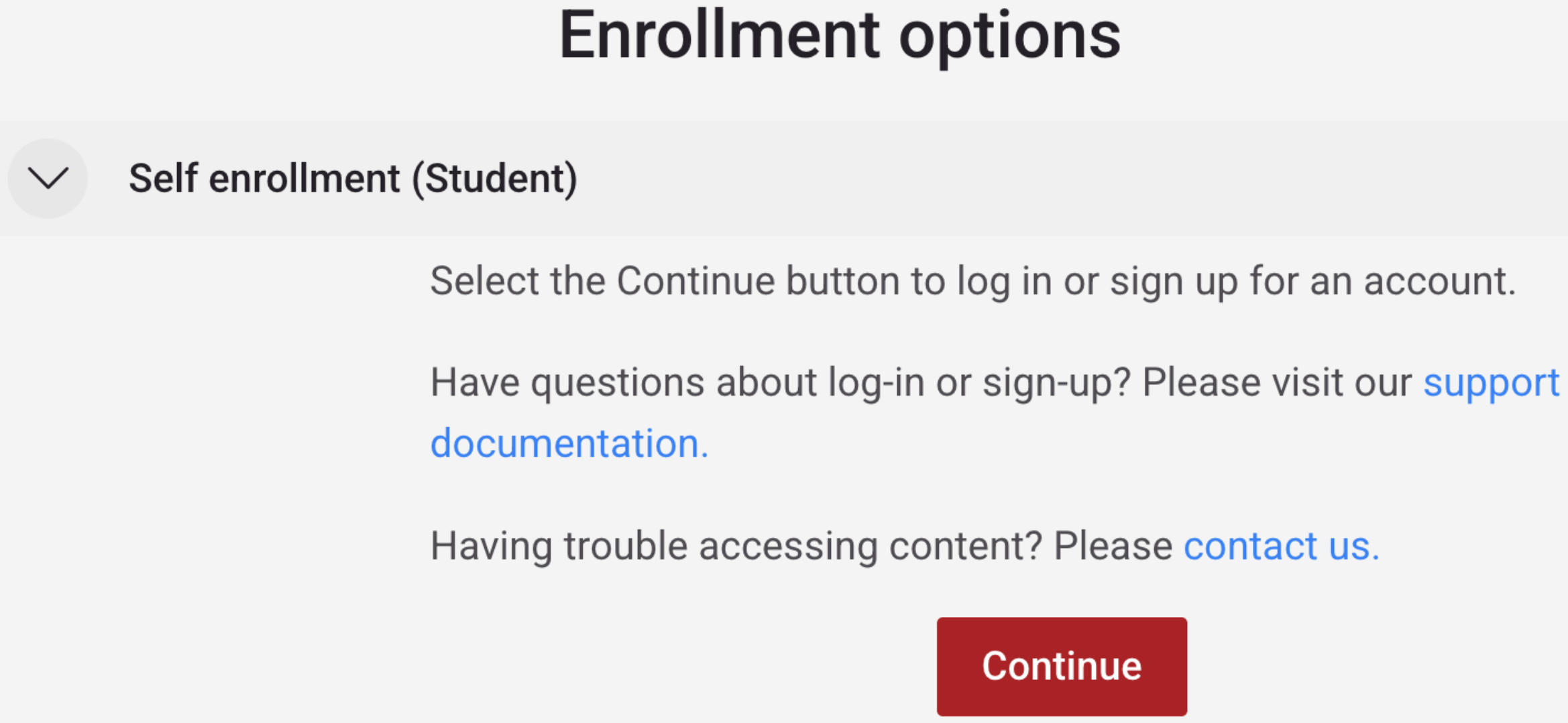
Self-enrollment is commonly used for self-paced courses and modules. It allows you to track your progress and helps course teams understand learner participation.
Self-Enrollment with an Enrollment Key
Some courses allow self-enrollment but require a course-specific enrollment key. The course or program organizer should provide this key to eligible participants.
How to Enroll
- Go to PPN Learn and select Log in.

- Log in to your existing PPN account or select Sign in or sign up with another account. New users may be asked to verify an email address, create a password, and provide brief demographic information.
- Navigate to the enrollment page for the course you want to join.
- Enter the enrollment key provided by the course organizer in the Enrollment Options area, and then select Enroll Me.
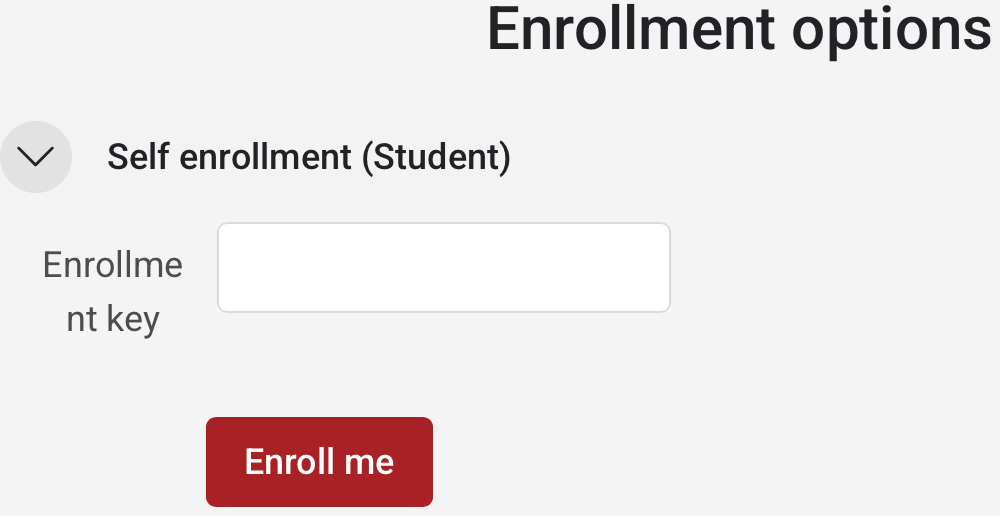
- After enrollment is confirmed, open the course and begin participating.
Protect enrollment keys: An enrollment key may be limited to a particular program, organization, or learner group. Do not share a key unless the course organizer has authorized you to do so.
If you were told that a course requires an enrollment key but did not receive one, contact the course or program organizer who invited you to participate.
Enrollment by a Facilitator
Some courses require both a PPN account and enrollment by a course facilitator, teacher, manager, or administrator. You cannot enroll yourself in these courses.
Facilitator enrollment is commonly used for cohort-based programs, institution-specific training, or courses with a defined participant group.
After the facilitator confirms your enrollment, log in to PPN Learn and look for the course under My courses.
Cannot find your course? If you believe you should have access but do not see the course after logging in, first confirm that you used the correct PPN account. Then contact your course facilitator or PPN Learn Support for assistance.
Access Content You Enrolled In
When you enroll in content using your PPN account, PPN Learn adds it to your personal course dashboard. You can return to this area to reopen courses and review available progress or completion information.
How to Find Your Enrolled Content
- Log in to PPN Learn using the account you used to enroll.
- Select My courses from the navigation menu.
- Review the courses and other enrolled content displayed on your dashboard.
- Select a course title or course card to return to the content.
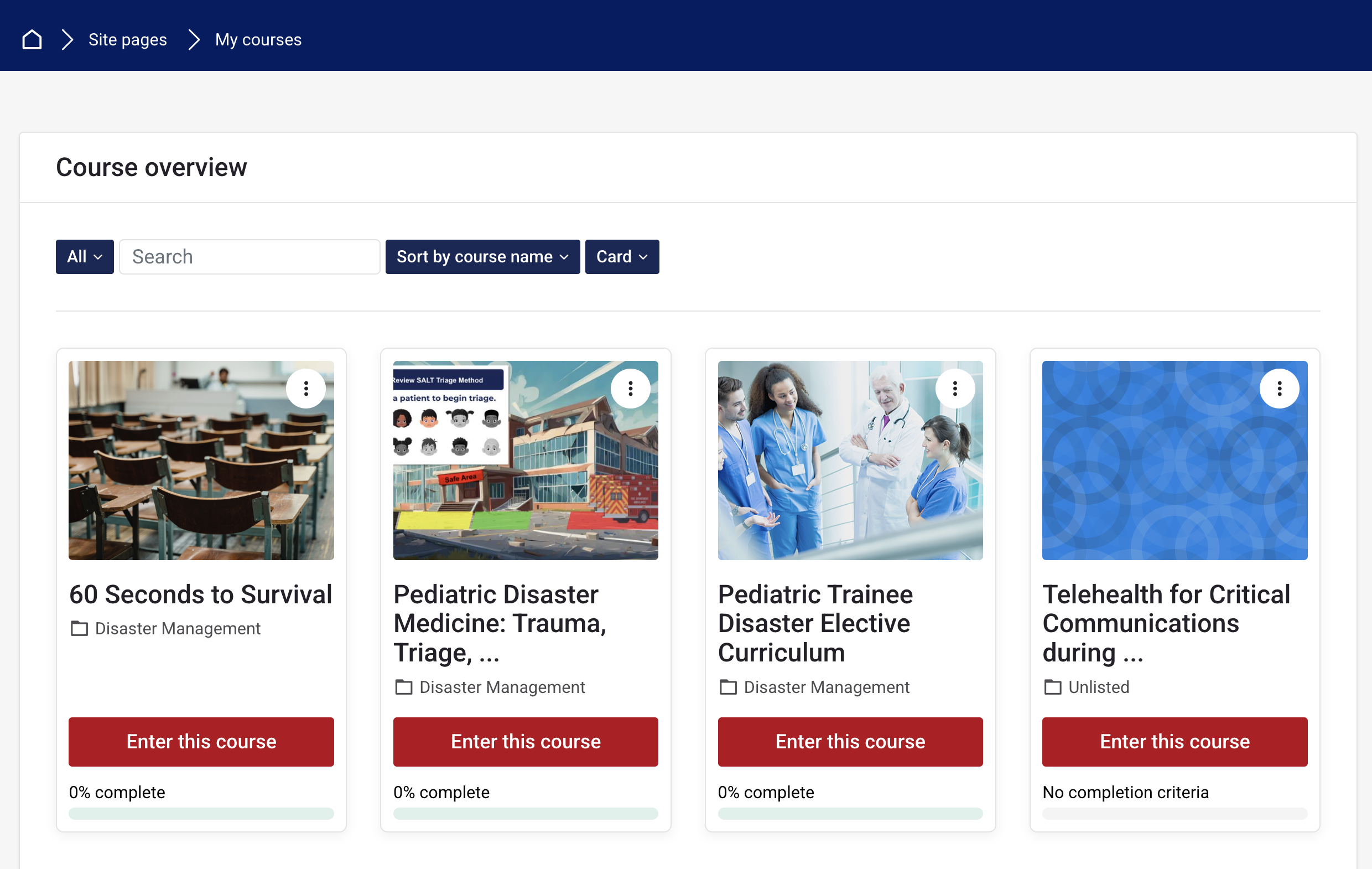
From the dashboard, you can re-enter content in which you are already enrolled. Depending on how a course is configured, you may also be able to review your progress or completion status.
Cannot find a course? Confirm that you logged in using the same account and login method you used when enrolling. If the course still does not appear, contact your course facilitator or PPN Learn Support .
Use PPN Learn to Train Others
PPN Learn can support more than individual professional development. Organizations, educators, program leaders, and training teams can use PPN Learn resources to provide structured learning for staff, trainees, teams, and other groups.
Whether you want to share a single resource, guide a group through a curriculum, or develop a more structured learning experience, the PPN Education team can help identify an approach that fits your training goals.
How Can I Use PPN Learn with My Learners?
Depending on your goals, audience, and reporting needs, there are several ways to incorporate PPN Learn resources into an educational or training program.
1. Share PPN Learn Resources
Direct learners to existing courses, curricula, toolkits, or other educational resources available through PPN Learn.
This may be a good option when you:
- Want learners to explore a resource independently
- Are recommending supplemental learning
- Do not need group-specific administration or reporting
- Want to incorporate PPN resources into an existing educational or training program
2. Create a Learning Cohort
A cohort can help organize learners who are completing PPN Learn content as part of the same institution, program, training initiative, or learning experience.
A cohort may be useful when you want to:
- Organize a defined group of learners
- Direct participants to selected PPN Learn content
- Support an institutional or program-based training initiative
- Monitor participation or completion when reporting is available
- Coordinate learning across a class, department, institution, or other group
3. Create a Structured Training Experience
For programs requiring additional organization, PPN Learn may be able to support a dedicated learning experience using existing PPN educational content.
Depending on the project, this could include:
- A curated sequence of existing PPN Learn resources
- Program-specific instructions or supporting materials
- Activities, assessments, or other learning components
- Defined completion expectations
- Learner enrollment or group management
- Appropriate reporting for designated course leaders
The appropriate approach will depend on your audience, educational goals, selected content, reporting needs, anticipated number of learners, and available resources.
Can My Organization Add Content to PPN Learn?
Organizations interested in developing or contributing educational content may contact the PPN Education team to discuss a proposed project.
Potential projects may include:
- Online courses or instructional modules
- Educational videos or presentations
- Case-based or scenario-based learning activities
- Knowledge checks or assessments
- Toolkits, curricula, and downloadable resources
- Facilitator guides and train-the-trainer materials
Proposed content should support pediatric disaster preparedness, response, recovery, or everyday readiness. Projects are reviewed collaboratively to determine alignment with PPN educational priorities, intended audience, learning objectives, platform requirements, accessibility standards, and available resources.
What Can the PPN Education Team Help With?
Depending on the training request, the PPN Education team may assist with:
- Identifying existing PPN Learn resources that align with your educational goals
- Determining whether learners should use existing courses or participate in a more structured learning experience
- Establishing and organizing learner cohorts
- Planning enrollment and learner access
- Identifying appropriate course roles and permissions
- Discussing available participation and completion reporting
- Organizing or adapting educational content for online delivery
- Supporting course design and development
- Testing the learner experience before launch
What Should I Know About Learner Reporting?
Reporting capabilities depend on how the learning experience is configured and the role assigned to the person reviewing learner activity. Not every PPN Learn resource or access method provides the same level of learner reporting.
If your program requires participation, completion, or other learner data, discuss those needs with the PPN Education team before training begins. Early planning helps determine the appropriate course structure, enrollment method, tracking requirements, and permissions.
What Information Should I Provide?
Before contacting the PPN Education team, consider the following questions:
- Training goal: What should learners know or be able to do?
- Audience: Who will participate?
- Estimated number of learners: Approximately how many people will participate?
- Content: Will you use existing PPN Learn resources, propose new content, or use both?
- Timeline: When would you like the training to begin?
- Completion expectations: Will learners be expected to complete specific activities?
- Reporting needs: Will you need participation, completion, or other learner information?
- Program leadership: Who will coordinate the training for your organization?
- Ongoing use: Is this a one-time offering or a recurring program?
You do not need to have every detail determined before reaching out. This information simply helps the PPN Education team understand your needs and recommend an appropriate approach.
Interested in Using PPN Learn to Train Others?
Contact the PPN Education team to discuss your training goals and how PPN Learn may be able to support your learners.
Enroll Users in a Course
If you are assigned the Front-end Teacher role in a PPN Learn course, you may be able to enroll existing PPN Learn users in that course.
The person must already have a PPN account before you can find and enroll them. Ask new users to create their account before completing these steps.
How to Enroll a User
- Open the course in which you want to enroll the user.
- Select the Participants tab from the course navigation.
- Select Enroll users.
- In the user search field, begin entering the person’s name or email address.
- Select the correct person from the search results.
- Confirm the role that should be assigned. The default role is typically Student.
- Select Enroll users to complete the enrollment.
Assigning the Appropriate Role
Most participants should be enrolled as Students. Depending on your permissions and the person’s responsibilities, you may also be able to assign another course role.
- Student: Participates in course activities and completes assigned learning.
- Non-editing teacher: Supports learners and may review permitted course information but cannot modify course content.
- Front-end Teacher: Can manage learners and edit course activities and resources.
Important: Assign Front-end Teacher or Non-editing teacher roles only when the person requires those permissions. If you are uncertain which role to use, contact PPN Learn Support before completing the enrollment.
Build and Manage Your PPN Learn Course
If you are assigned the Front-end Editing Teacher role in a PPN Learn course, you can help manage the learning experience for your participants. Depending on your course and assigned permissions, this may include updating course content, adding activities and resources, communicating with learners, and reviewing participation and completion.
This guide introduces common course-management tasks and helps you choose the appropriate PPN Learn tools for what you want learners to do.
Before You Make Changes
Before editing an established or published course, consider whether the change could affect:
- Current learners or cohorts
- Activity or course completion requirements
- Assessments or grades
- Continuing education requirements
- Existing learner progress or completion records
- Links or instructions elsewhere on PPN Learn
- Approved or previously reviewed educational content
Important: Before making significant changes to an established learning product, contact your PPN Education team point person to discuss the potential effect on learners, tracking, reporting, and approved content.
Turn Editing On
To make changes within your course:
- Open your course.
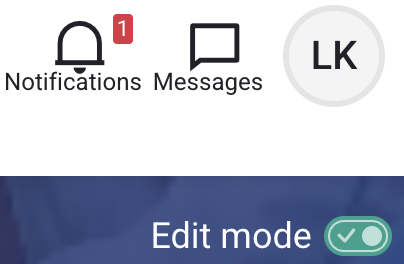
- Turn Edit mode on.
- Navigate to the section, activity, or resource you want to update.
- Use the available editing options to add, move, edit, hide, duplicate, or remove content.
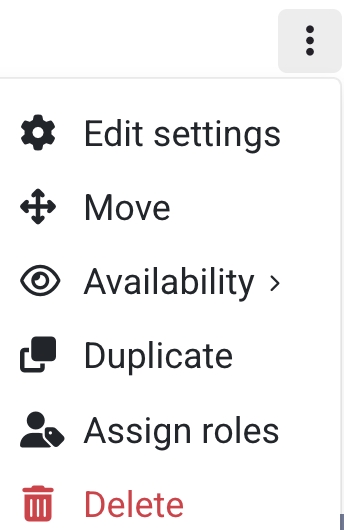
The options available to you depend on your assigned role and the configuration of the course.
Tip: If an expected editing option is unavailable, the restriction may be intentional. Contact your PPN Education team point person instead of changing other settings to work around it.
Choose the Right Activity or Resource
Select an activity or resource based on what learners need to do. The table below provides guidance for several commonly used PPN Learn tools.
| I want learners to... | Consider using... |
|---|---|
| Read instructions, introductory information, or brief course content | Text and media area |
| Open or download a document, template, handout, or presentation | File |
| Visit an external website, video, tool, or partner resource | URL |
| Submit written work or upload a file | Assignment |
| Participate in a discussion, reflection, or question-and-answer activity | Forum |
| Answer questions that can be evaluated or scored | Quiz |
| Complete an ungraded survey or provide feedback | Questionnaire |
| Complete multimedia or interactive learning | Interactive Content |
| Complete a packaged eLearning module with progress tracking | SCORM Package |
Share Information or Instructions
A Text and media area is useful for information learners should see directly on the course page, including:
- Section introductions
- Instructions
- Learning objectives
- Brief explanatory content
- Images, links, reminders, or callouts
Keep course-page content concise and easy to scan. Longer educational content may be better suited to a separate resource or activity.
Share a Document or External Resource
A File is appropriate when learners need to open or download a document, worksheet, template, reference document, or presentation.
Give files descriptive, learner-friendly names instead of displaying only the uploaded filename.
Preferred: Community Exercise Planning Worksheet
Less helpful: final_document_v3.pdf
A URL is appropriate when an external website, video, online tool, or partner resource is an intentional part of the learning experience.
Configure external resources to open in a new window or tab when appropriate so learners can easily return to PPN Learn.
Collect Learner Work or Feedback
An Assignment is useful when learners need to submit something for review. Depending on its configuration, learners may enter text, upload a file, receive feedback, or receive a grade.
A Questionnaire can collect ungraded responses such as course feedback, needs assessments, learner reflections, program evaluations, or experience surveys.
Create Discussion or Interactive Learning
A Forum is useful for asynchronous discussion, reflection, collaboration, introductions, case discussions, or learner questions.
Before opening a forum, add an introductory post explaining its purpose, how learners should participate, and what they should contribute.
Interactive Content can provide multimedia or interactive learning experiences. Before selecting this option, consider accessibility requirements and whether learner participation or completion needs to be tracked.
Assess Knowledge or Track eLearning Completion
A Quiz is appropriate when learners need to answer questions that can be evaluated or scored. Quizzes may support knowledge checks, formal assessments, passing-score requirements, feedback, and activity or course completion.
Important: Changes to an existing quiz may affect learner attempts, grades, or completion. Consult the PPN Education team before making significant changes to an assessment already in use.
A SCORM Package is commonly used for interactive eLearning developed in an external authoring tool. Depending on the package and configuration, SCORM may report:
- Attempts
- Completion status
- Passing or success status
- Scores
- Time spent
- Learner interactions
Important: Do not replace or substantially modify an active SCORM activity without first consulting the PPN Education team. Changes may affect existing learner progress, attempts, and completion records.
Move, Hide, Duplicate, or Remove Content
With editing enabled, you may see several options for managing existing course content.
Move
Change where an activity, resource, or section appears within the course.
Hide
Temporarily prevent learners from accessing an item while keeping it available to authorized course staff.
Duplicate
Create a copy of an existing activity or resource as a starting point for another item.
Delete
Remove an activity or resource from the course.
Use caution when deleting content. An activity may already contain learner participation, submissions, attempts, completion information, or other records.
If learners have already used an activity, do not delete it solely to replace or reorganize content. Contact your PPN Education team point person if you are unsure how the change could affect existing learner records.
Before Publishing Your Changes
After editing your course, review the experience from the learner’s perspective.
Course Review Checklist
- Instructions are clear.
- Activity and resource names are understandable.
- Links work.
- Files open correctly.
- Required activities are visible.
- Activities appear in the intended order.
- Completion requirements match the intended learning experience.
- Assessments behave as expected.
- Hidden or draft materials are not unintentionally available.
- Learners can determine what they are expected to do next.
Recommended: For substantial changes, ask your PPN Education team point person to review or test the course before learners begin.
Need Help?
Contact your PPN Education team point person if you:
- Are unsure which activity or resource to use
- Need to change course completion requirements
- Need to modify an assessment
- Want to add or replace a SCORM package
- Are making significant changes to an established course
- Encounter unexpected learner completion or tracking behavior
- Need functionality that is unavailable with your assigned role
The PPN Education team can help determine the best approach while protecting the learner experience and existing course records. If you do not know your PPN Education team point person, contact PPN Learn Support .
Review Learner Data for Your Course
If you are assigned the Teacher role in a PPN Learn course, you may be able to review reports for that course. Available reports and data depend on your permissions, assigned groups, and the course configuration.
Access Course Reports
- Open the appropriate course.
- Select Course from the course navigation.
- Select Reports. Depending on the page layout, you may need to select More and then Reports.
Start with the question you need to answer, and then select the report designed to provide that information. No single report provides a complete picture of learner engagement or understanding.
Report Selection Guide
| Question to Answer | Best Starting Report | What It Provides |
|---|---|---|
| Did a named learner access a particular activity, and when? | Logs | Time-stamped events that can be filtered by learner, date, activity, action, group, and level |
| What is happening in the course right now? | Live logs | A near-real-time event stream that may be useful during a launch, webinar, or reported access problem |
| Which activities or resources receive the most views? | Activity report | Aggregate views by activity or resource for identifying broad usage patterns |
| Who viewed or posted in a particular activity? | Course participation | A participant list and counts for a selected activity, with available role, group, and action filters |
| Who completed each tracked activity? | Activity completion | A learner-by-activity completion grid that may allow authorized completion overrides |
| Who met the overall course-completion criteria? | Course completion | Overall completion-criteria status when course completion is enabled |
| What has one learner done across the course? | Individual learner reports or logs | Individual activity, contribution, and event history, depending on the report selected |
How to Use Each Teacher Report
Use Logs when you need a time-stamped, audit-style view—for example, to determine whether a learner opened an activity, submitted an attempt, posted in a forum, or completed a sequence of actions relevant to a support issue.
- Open Logs. From the course, select Reports > Logs.
- Set the filters. Select the appropriate group, participant, date, activity, action, event, source, or educational level.
- Run the report. Select Get these logs or the equivalent action.
- Refine the results. If the results are too broad, reduce the date range or select one learner, activity, or action.
- Download only when authorized. Select an available CSV, text, ODS, or Excel format.
Note: Logs may also be reviewed directly on the page without downloading them.
Use with care: Logs may contain names, IP addresses, precise timestamps, and detailed behavior. Do not treat an IP-derived location as definitive proof of a person’s location, and do not distribute raw logs when a summarized finding is sufficient.
Use Live logs for immediate operational awareness during a course launch, synchronous event, or active support case. Pause or resume live updates when those controls are available.
Live logs are not the preferred source for a historical or reproducible report. Use filtered Logs for that purpose.
Use the Activity report to review aggregate views for course activities and resources. Its coverage may be affected by the course start date and the site’s log-retention configuration.
This report can help identify broad usage patterns, but it does not show whether learners understood or meaningfully engaged with the content.
- Open the report. Select Reports > Activity report.
- Review high- and low-activity items. Consider course placement, required or optional status, audience, and time available.
- Investigate before acting. Use participation, completion, or Logs when a learner-level or action-level answer is needed.
Use Course participation to determine who performed the report-defined View or Post actions in one selected activity and how many times. Available filters commonly include role, group, time period, and action.
- Select the activity. Choose the forum, assignment, resource, or other activity to examine.
- Select the period and role. Apply the relevant time period, learner role, and group.
- Choose View or Post. Read the on-screen definition because the events counted as View or Post vary by activity type.
- Run and interpret the report. Use the participant list and counts to identify possible outreach needs.
- Message cautiously. If messaging is enabled and appropriate, confirm the recipients, use supportive language, avoid revealing who else is included, and do not contact learners based solely on an ambiguous metric.
Use Activity completion to review each learner’s status for activities configured with completion tracking. This report is available only when completion tracking and the required permissions are enabled.
- Open the report. Select Reports > Activity completion.
- Filter or search. Use the group, participant initials, search, page controls, or other available filters.
- Review the status symbols. Symbols may distinguish manual and automatic completion and outcomes such as complete, passed, failed, or not possible.
- Export when necessary. Use an available download format when an authorized working extract is required.
- Override only with authority and evidence. Select a completion box only when your role permits the change and documented evidence supports it. A Teacher-set status is identified in the report.
High-impact action: Changing a completion status changes the learner’s record. Do not use an override to conceal a course-design, tracking, activity, or technical problem. Document the reason and supporting evidence according to PPN practice.
Use Course completion to review overall completion criteria when course completion is enabled and configured. This is different from Activity completion. Overall course completion may depend on multiple activities, a passing grade, manual completion, a date, or other configured criteria.
- Open the report. Select Reports > Course completion.
- Confirm the criteria. Before interpreting a learner’s status, review the course’s approved completion design or consult the LMS Lead.
- Review learner status. Search or filter as available and open learner details when a completion date or time is needed.
- Use manual completion only when configured. A manual completion column appears only when the course criteria and assigned role permit it.
- Allow for processing. Some completion updates may not appear immediately because scheduled processing may be involved. Verify the status before treating a short delay as an error.
From the Participants list or a learner’s course profile, Teachers may have access to reports such as User report, Outline report, Complete report, or Today’s logs. Availability depends on site settings and role permissions.
Use these reports when supporting one learner. Do not capture or distribute screenshots containing information about unrelated learners.
Search and Filter Effectively
- Verify the course before entering a learner’s name; the same learner may be enrolled in multiple offerings.
- Use a stable identifier displayed by PPN Learn when duplicate names are possible. Do not guess.
- Apply group filters first when the course uses separate groups. Teachers may see only their assigned groups.
- Use the smallest useful date range and confirm the site or course time zone.
- Select one activity when investigating a specific learner action.
- In Logs, distinguish among View, Create, Update, Delete, Submit, Post, and other events. Labels vary by activity.
- In participation reports, read the on-screen definition of View and Post for the selected activity.
- In completion reports, confirm whether the status is manual, automatic, overridden, passed, failed, or still processing.
- Save the filter definition with an extract. A spreadsheet without its filter context is not a reproducible report.
Extracting Results
| Format | Best Use | Handling Note |
|---|---|---|
| CSV or plain text | Analysis, import, reconciliation, or preservation of a stable raw-data layer | Open carefully so dates, leading zeros, and identifiers are not automatically altered. |
| Excel | Review, filtering, pivot tables, or presentation-ready internal analysis | Preserve an unchanged Raw Data worksheet and perform calculations on separate worksheets. |
| ODS | OpenDocument-compatible spreadsheet workflows | Use when required by the receiving application or team. |
| On-screen view or PDF print | A small, read-only snapshot when a data extract is unnecessary | Verify all filters and confirm that no unrelated learner data is visible. |
Protect learner information: Download, store, share, and dispose of learner-level reports according to approved PPN practices and applicable institutional privacy and data-handling requirements. Share only the minimum information necessary for the authorized purpose.